


Reset Epson L310: Official Ink Pad Software UK UK Official Certified
Download the certified reset tool for your Epson EcoTank L310. Fix the Ink Pad End of Life error and restore full printing. Lifetime licence included

Permanently active
✓ Reset 100% of the counter
✓ Installation transfer twice a year
✓ Automatic delivery in 20 seconds
✓ Reset 100% of the counter
✓ Installation tutorial
✓ Total Life-Time guarantee
✓ Reset 100% of the counter
✓ Installation transfer twice a year
✓ Automatic delivery in 20 seconds
✓ Reset 100% of the counter
✓ Installation tutorial
✓ Total Life-Time guarantee
EUR 10
Active for 30 days
✓ Reset 100% of the counter
✓ Several printers of this model
✓ Automatic delivery 24 hours
✓ Online support
✓ Installation tutorial
✓ 30-day warranty
✓ Reset 100% of the counter
✓ Several printers of this model
✓ Automatic delivery 24 hours
✓ Online support
✓ Installation tutorial
✓ 30-day warranty
EUR 2.5
Keys for multiple models
✓ Choose your Models
✓ All Epson printers available
✓ Packages with 70% discount
✓ Online support
✓ Installation tutorial
✓ Activate it whenever you want
✓ Perfect for assistance
(At the client's company or address)
✓ Choose your Models
✓ All Epson printers available
✓ Packages with 70% discount
✓ Online support
✓ Installation tutorial
✓ Activate it whenever you want
✓ Perfect for assistance
(At the client's company or address)
Shipment
Automatic delivery in 10 seconds every day of the week.
Warranty
Full product warranty, receive your product or your money back
Support
Only works on Windows
7 8 10 and 11
The Professional Reset Solution for the Epson EcoTank L310 Printer
Is the definitive, reliable, and expertly developed answer when your specific Epson EcoTank L310 displays the critical "Ink Pad End of Life" or "Maintenance Required" error. This warning is an integral safety feature engineered by Epson, designed to halt printing before the internal waste ink absorber saturates and overflows, risking irreversible damage to your Epson EcoTank L310. Executing this reset is a standard, recommended maintenance procedure — not a complex repair — essential to restore full functionality to your Epson EcoTank L310. Without this software intervention, the printer remains locked in an error state and completely unusable.
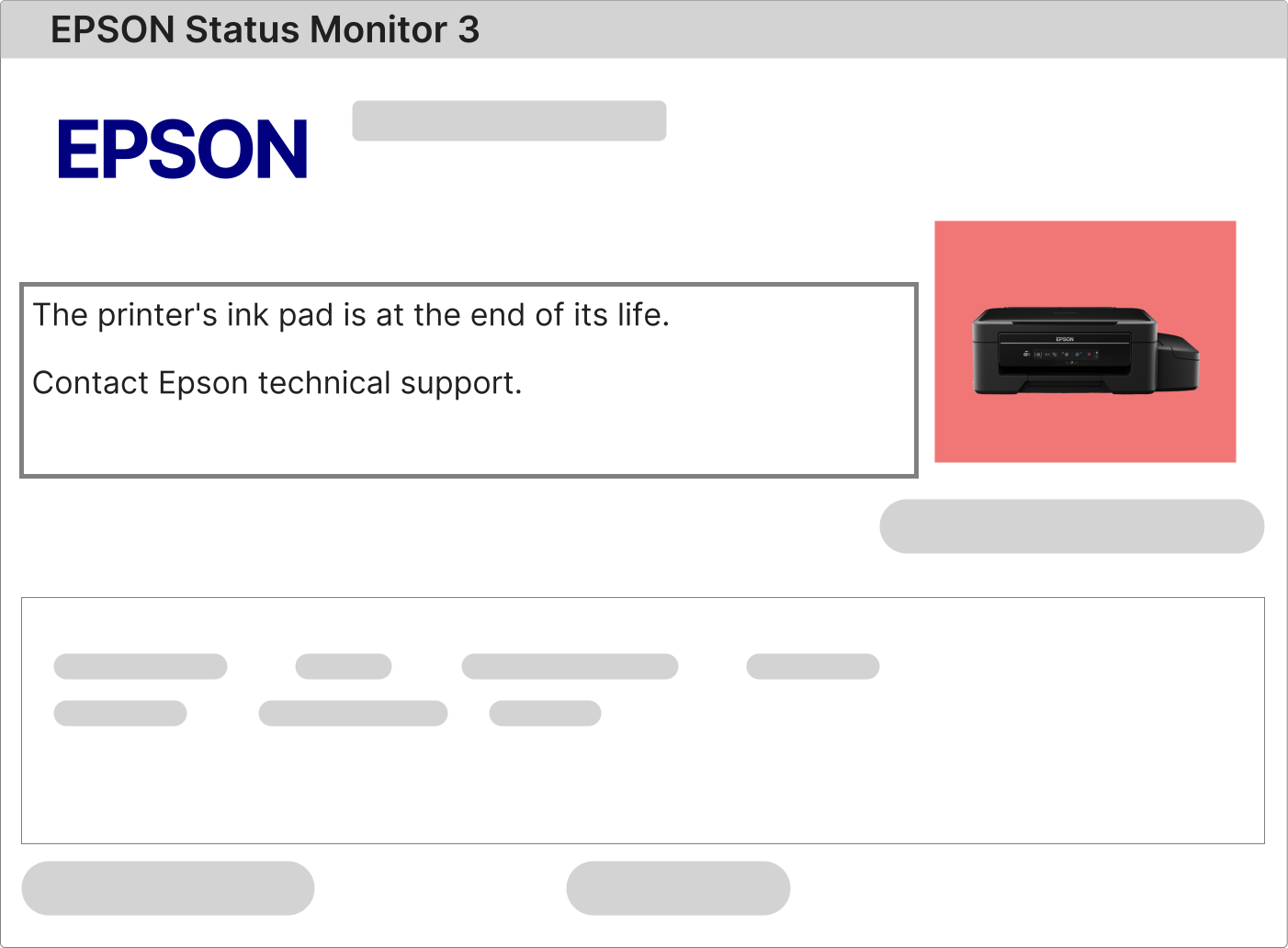
What Does It Mean When All Lights Flash on My Epson EcoTank L310?
A simultaneous persistent flash of all indicator lights on your Epson EcoTank L310 signals that the internal waste ink counter has reached its factory-set maximum. To get a precise software-based diagnosis, check Epson Status Monitor 3 on your Windows computer. This utility communicates with the printer's firmware and confirms whether a reset for the Epson EcoTank L310 is required.
1 – Attempt to print a document from your computer to your Epson EcoTank L310 and note the error message in Epson Status Monitor 3.
2 – If the message mentions the ink pad counter, a service requirement, or end of life, you must perform a reset on your Epson EcoTank L310.
3 – If no message appears, install the latest drivers for your Epson EcoTank L310 from the official Epson support page.
How to Perform the Reset on Your Epson EcoTank L310 Safely
Resetting your Epson EcoTank L310 is a safe, software-based process requiring no hardware disassembly or technical skills. You only need a Windows computer, a USB cable, and the printer powered on. The utility accesses the printer's internal maintenance counters stored in non-volatile memory.
This utility, the Epson EcoTank L310 Reset Tool, is designed specifically for this exact model to safely reset the waste ink pad counter without altering critical factory configurations or warranty parameters.
1 – Download the dedicated reset programme for the Epson EcoTank L310 from the secure link sent to your email after purchase.
2 – Activate the software using the exclusive licence key provided, unlocking the tool specifically for your Epson EcoTank L310.
3 – Follow the detailed step-by-step video tutorial included with your download to guide you through the entire reset process for the Epson EcoTank L310.
4 – When complete, power off your Epson EcoTank L310, wait 10–15 seconds, and turn it back on. Your printer should now be error-free and ready for normal use.
The Critical Role of the Waste Ink Pad in Your Epson EcoTank L310
Your Epson EcoTank L310 contains an internal absorbent pad that collects excess ink expelled during printhead cleaning cycles, nozzle checks, and other maintenance tasks essential for producing high-quality prints.
This component prevents ink from leaking onto internal circuit boards and sensitive mechanical parts, protecting the overall integrity of your Epson EcoTank L310.
When this pad physically fills to capacity, the printer triggers a mandatory lockdown. This is precisely when you need a reset for your Epson EcoTank L310 to electronically inform the printer that maintenance has been performed.
The complete maintenance cycle for your Epson EcoTank L310 involves two essential steps:
• Cleaning or replacing the physical waste ink pad to ensure future waste ink has space without overflowing.
• Using the Epson EcoTank L310 reset software to electronically zero the maintenance counter, telling the printer the pad has been serviced.
After your successful payment, you will instantly receive an automated email with your personal software key and the secure download link.

The email contains your unique activation key and the official private download link for the Epson EcoTank L310 reset software.
Simply follow the clearly written instructions provided to reset your Epson EcoTank L310 and return to printing without delay.
Free Utilities vs. Licensed Professional Software for the Epson EcoTank L310
Why a licensed reset is the safest and most intelligent choice for your Epson EcoTank L310
Risks associated with free or cracked reset programmes:
• Extremely high risk of viruses, spyware, or ransomware that can steal data and damage your computer.
• Frequent errors during the Epson EcoTank L310 reset process, often leaving the printer frozen in an error state.
• The waste ink counter often remains unchanged, leaving your Epson EcoTank L310 permanently locked with flashing lights.
• Can cause irreversible damage to the printer's critical firmware, rendering the Epson EcoTank L310 completely unusable.
Advantages of the Licensed Epson EcoTank L310 Reset Solution:
• Safe, thoroughly tested, and verified software designed exclusively for the Epson EcoTank L310.
• Quick, hassle-free installation and immediate activation on any Windows-based system.