


Reset Epson L360: Fix Ink Pad Error Certified UK Official Certified
The official software solution for your Epson EcoTank L360 ink pad counter reset. Permanently fix the maintenance error and resume printing with a lic

Permanently active
✓ Reset 100% of the counter
✓ Installation transfer twice a year
✓ Automatic delivery in 20 seconds
✓ Reset 100% of the counter
✓ Installation tutorial
✓ Total Life-Time guarantee
✓ Reset 100% of the counter
✓ Installation transfer twice a year
✓ Automatic delivery in 20 seconds
✓ Reset 100% of the counter
✓ Installation tutorial
✓ Total Life-Time guarantee
EUR 10
Active for 30 days
✓ Reset 100% of the counter
✓ Several printers of this model
✓ Automatic delivery 24 hours
✓ Online support
✓ Installation tutorial
✓ 30-day warranty
✓ Reset 100% of the counter
✓ Several printers of this model
✓ Automatic delivery 24 hours
✓ Online support
✓ Installation tutorial
✓ 30-day warranty
EUR 2.5
Keys for multiple models
✓ Choose your Models
✓ All Epson printers available
✓ Packages with 70% discount
✓ Online support
✓ Installation tutorial
✓ Activate it whenever you want
✓ Perfect for assistance
(At the client's company or address)
✓ Choose your Models
✓ All Epson printers available
✓ Packages with 70% discount
✓ Online support
✓ Installation tutorial
✓ Activate it whenever you want
✓ Perfect for assistance
(At the client's company or address)
Shipment
Automatic delivery in 10 seconds every day of the week.
Warranty
Full product warranty, receive your product or your money back
Support
Only works on Windows
7 8 10 and 11
The Certified Reset Solution for Your Epson EcoTank L360
When your Epson EcoTank L360 shows the "Ink Pad End of Life" or "Service Required" message, it has reached a critical maintenance threshold set by Epson. The internal waste ink absorber has accumulated ink from cleaning cycles over time and is now at capacity. Epson's firmware triggers a mandatory lockdown to protect the printer's delicate internal components. Our certified Epson EcoTank L360 Reset Tool electronically resets this counter, allowing your printer to resume operation without any physical disassembly or specialist tools.
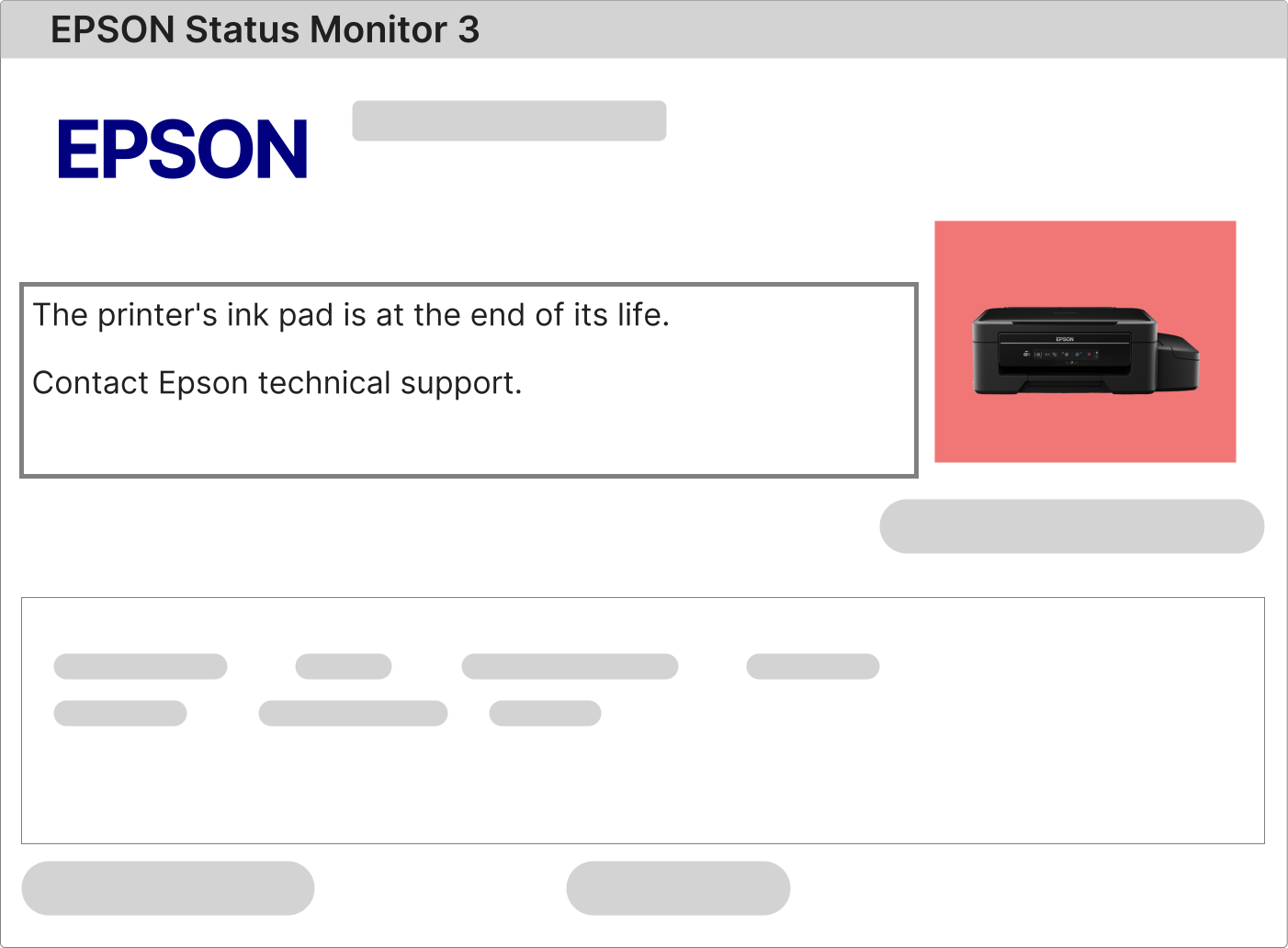
Understanding the Flashing Lights Error on Your Epson EcoTank L360
When all indicator lights on your Epson EcoTank L360 flash simultaneously, this is Epson's built-in visual communication that the waste ink counter has hit its pre-set limit. The Epson Status Monitor 3 software on your connected Windows PC will display the specific error message confirming that a reset for the Epson EcoTank L360 is required to restore normal operation.
1 – Send a print job to your Epson EcoTank L360 and observe the error message in Epson Status Monitor 3.
2 – If the message references the ink pad, service requirements, or component end of life, proceed with a reset of your Epson EcoTank L360.
3 – If no message appears, update your Epson EcoTank L360 printer drivers from the official Epson website before retrying.
Performing the Reset on Your Epson EcoTank L360: The Simple Process
The reset procedure for your Epson EcoTank L360 is entirely software-driven and requires no opening of the printer casing or technical expertise. A Windows computer, a USB cable connected to your Epson EcoTank L360, and the printer powered on is all that is required for the utility to interface with your printer's non-volatile memory.
The Epson EcoTank L360 Reset Tool has been specifically compiled and rigorously tested for this precise printer model to safely zero the waste ink pad counter without affecting any factory settings, network configurations, or original firmware.
1 – Use the secure download link delivered to your email following your purchase to obtain the reset programme for your Epson EcoTank L360.
2 – Enter the unique activation key provided in the confirmation email to unlock the full capabilities of the tool for your Epson EcoTank L360.
3 – Watch the step-by-step video tutorial included in your download package, which visually guides you through every stage of the Epson EcoTank L360 reset.
4 – Once the software confirms completion, turn off your Epson EcoTank L360, pause for 10–15 seconds, then power it on. The maintenance error will be cleared.
How the Waste Ink Pad Functions in Your Epson EcoTank L360
Inside your Epson EcoTank L360 is a dense foam pad — the waste ink absorber — that captures ink expelled during automated printhead cleaning routines, initial setup charging, and ongoing nozzle checks. These processes are vital to maintaining print quality on your Epson EcoTank L360.
This pad keeps waste ink contained within the printer's chassis, preventing any leakage that could short-circuit boards or damage the precision mechanical components of your Epson EcoTank L360.
As the pad fills progressively over years of use, the Epson EcoTank L360's internal electronic counter triggers a complete shutdown. Resetting your Epson EcoTank L360 electronically tells the printer's firmware that the pad has been serviced and it is safe to resume printing.
Proper Epson EcoTank L360 maintenance involves two complementary steps:
• Physically inspecting, cleaning, or replacing the waste ink pad to prevent future overflow.
• Applying the Epson EcoTank L360 reset software to clear the electronic maintenance counter and restore normal printer operation.
Your activation key and private download link will be emailed to you immediately after payment is confirmed.
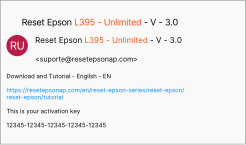
The email includes your personalised licence key and the official encrypted download page for the Epson EcoTank L360 reset software.
Follow the straightforward instructions enclosed to complete the reset of your Epson EcoTank L360 and get back to printing without further interruption.
Comparing Free Downloads vs. Licensed Professional Software for the Epson EcoTank L360
Why investing in a licensed reset is the only safe choice for your Epson EcoTank L360
Documented risks of free or unauthorised reset tools:
• Significant risk of malware, Trojans, or spyware embedded within free downloads that can compromise your entire system.
• Unpredictable errors during the reset, often leaving the Epson EcoTank L360 in a worse state than before the attempt.
• The maintenance counter frequently remains at maximum, resulting in a permanently locked Epson EcoTank L360 with ongoing flashing lights.
• Risk of permanent firmware corruption that renders the Epson EcoTank L360 beyond recovery and completely non-functional.
Benefits of the Licensed Epson EcoTank L360 Reset Tool:
• Professionally verified software built and tested exclusively for the Epson EcoTank L360 model.
• Simple installation process compatible with all modern Windows operating systems.