


Professional Service Software to Reset Epson SureColor P400 Unit
Download our specialized maintenance program for the Epson P400 model. This tool effectively clears internal alerts and optimizes your printing.
 Reset Epson P400 Printer Download Unlimited 1/PC
✓ 100% reset of ink pad counter
✓ Installation transfer twice a year
✓ Automatic delivery in 20 Seconds
✓ Permanently Active 1 PC
✓ Installation tutorial
✓ Total Life-Time guarantee
$5 USD
Epson P400 Printer Reset
Permanently active
✓ 100% waste ink counter reset
✓ Multiple printers of this model
✓ Automatic delivery in 20 seconds
✓ Online support
✓ Installation tutorial
✓ Full Life-Time guarantee
$5 USD
Checkout
Total:
$5 USD/1PC
Select one of the payment methods:
 PayPal
 PayPro Global
Server Status
Automatic delivery in 10 seconds
Manual delivery during business hours
 Keys for multiple models
✓ Choose your Models
✓ All Epson printers available
✓ Packages with 70% discount
✓ Online support
✓ Installation tutorial
✓ Activate it whenever you want
✓ Perfect for assistance
(At the client's company or address)
Shipment
Automatic delivery in 10 seconds every day of the week, 24 hours a day
Warranty
Full product warranty, receive your product or your money back
Windows
Compatible with all Windows - 7 - 8 - 10 - 11
What is the Reset Epson P400 Printer for?
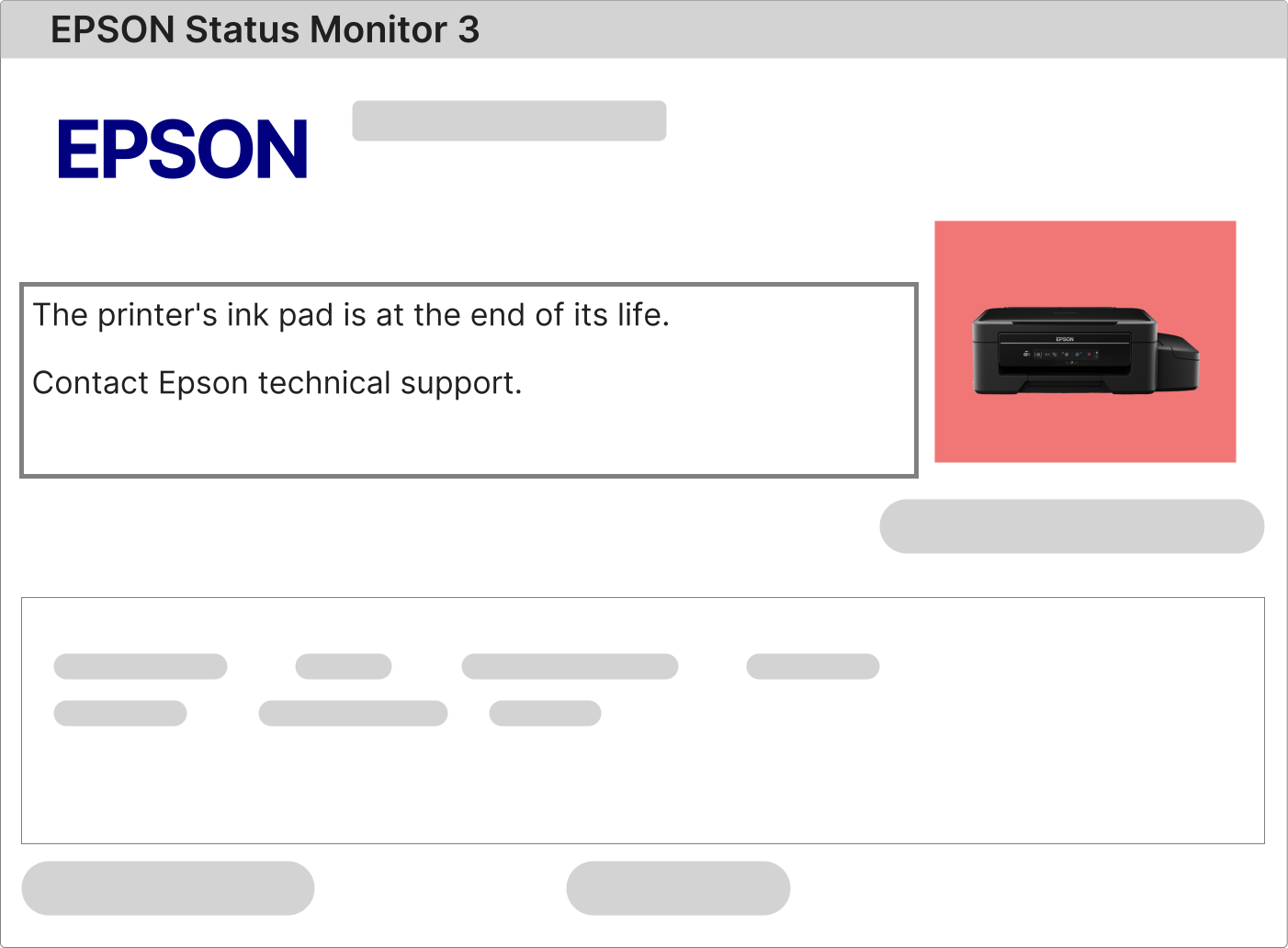
The Epson SureColor SC-P400 Printer Reset is the definitive solution when this 17-inch professional photo printer encounters error messages like "The Ink Absorber is Almost Full" or "A Component's Life Has Expired." These alerts are generated by the built-in protection system of the Epson SureColor SC-P400, engineered to prevent internal damage and ensure consistent print quality. For technical documents and part numbers, the official resource is always epson.com.
Troubleshooting the Flashing Lights Error on an Epson SureColor SC-P400
If the power and error lights on your Epson SureColor SC-P400 are flashing in unison, the printer is in a service-required state, most commonly due to the waste ink absorber counter reaching its maximum value. A precise diagnosis requires checking the error log via the printer's front panel or the Epson Professional Print Monitor software on your connected computer.
1 – With the printer on, try to print a nozzle check pattern or any small document from your computer's print queue.
2 – The printer will likely refuse the job and display a specific error code on its LCD screen or in a pop-up window on your PC. If this code relates to the ink absorber, maintenance box, or service life, an Epson SureColor SC-P400 Reset is imperative.
3 – In the absence of a clear message, confirm you are using the latest Epson Professional Print driver suite for the SC-P400, available for download from the model's support page on epson.com. Reinstall if necessary and retry.
Comprehensive Guide to Performing a Waste Ink Counter Reset on the Epson SC-P400
Executing a reset on the Epson SureColor SC-P400 involves using specialized adjustment software that interfaces directly with the printer's service mode. You will need a Windows PC (7, 8, 10, or 11), the printer powered on and idle, and a standard USB cable for a direct, stable connection.
This model requires its own specific version of service utility, accurately known as the Epson SC-P400 Adjustment Program or Reset Tool, to access and reset the protected waste ink counter.
1 – Download the official reset software package from the private link delivered to your email inbox after your order is processed.
2 – Install and launch the application on your Windows computer. Input the valid license key (provided in your delivery email) to activate the software fully before proceeding.
3 – Carefully execute the reset sequence as demonstrated in the accompanying video tutorial. This guide is specific to the SC-P400's menus and button sequences.
4 – After the software confirms a successful reset, you must fully power down the Epson SureColor SC-P400. Unplug it from the electrical outlet for one full minute, then plug it back in and turn it on to initialize with the cleared counter.
The Role and Maintenance of the Waste Ink Absorber in the Epson SureColor SC-P400
The Epson SureColor SC-P400 utilizes a high-efficiency waste ink absorption system, which is a crucial component for managing the ink used during automated print head cleaning, startup cycles, and printer self-maintenance.
This absorber, often a set of pads or a designated container inside the printer, collects all residual ink. As outlined in the maintenance guide on epson.com, this component has a finite capacity based on estimated ink usage.
An internal microprocessor tracks this usage. When the absorber nears saturation, the printer's firmware triggers a service request and eventually a full stop to prevent any hazardous overflow that could damage sensitive internal parts.
Resolving this issue and returning your printer to a production-ready state requires a dual approach:
• Physical Maintenance: Professionally service or replace the internal waste ink absorber unit. For heavy-use environments, consider installing an external waste ink bottle kit, compliant with recommendations found on epson.com forums.
• Electronic Reset: Perform the Epson SureColor SC-P400 Printer Reset using our licensed software to communicate with the printer's system and reset the electronic counter to a "zero" state, removing the software lock.
Once your purchase is verified, an automated delivery system will send your activation email.
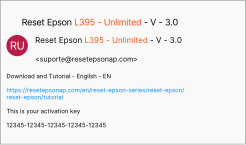
Your delivery email will include all essential items: a unique and permanent activation code, a fast-access download link for the SC-P400 reset software, and a clear, professional video tutorial detailing the entire procedure from start to finish.
Following the provided guide ensures a smooth, trouble-free reset process, allowing you to resume high-quality printing with your Epson SureColor SC-P400 without delay or risk.
Epson SureColor SC-P400 Reset: The Professional Choice vs. Unverified Methods