

 PayPal
  PayPro Global
 - You are here:
- Reset Epson P

Expert Maintenance Utility to Reset Epson SureColor SC-P607 Units
Download this specialized maintenance manual for the Epson SC-P607 series. This utility provides the instructions to clear internal system locks.
 Reset Epson P607 Printer Download Unlimited 1/PC
✓ 100% reset of ink pad counter
✓ Installation transfer twice a year
✓ Automatic delivery in 20 Seconds
✓ Permanently Active 1 PC
✓ Installation tutorial
✓ Total Life-Time guarantee
$5 USD
Epson P607 Printer Reset
Permanently active
✓ 100% waste ink counter reset
✓ Multiple printers of this model
✓ Automatic delivery in 20 seconds
✓ Online support
✓ Installation tutorial
✓ Full Life-Time guarantee
$5 USD
Checkout
Total:
$5 USD/1PC
Select one of the payment methods:
Server Status
Automatic delivery in 10 seconds
Manual delivery during business hours
 Keys for multiple models
✓ Choose your Models
✓ All Epson printers available
✓ Packages with 70% discount
✓ Online support
✓ Installation tutorial
✓ Activate it whenever you want
✓ Perfect for assistance
(At the client's company or address)
Shipment
Automatic delivery in 10 seconds every day of the week, 24 hours a day
Warranty
Full product warranty, receive your product or your money back
Windows
Compatible with all Windows - 7 - 8 - 10 - 11
What is the Reset Epson P607 Printer for?
The Epson SureColor SC-P607 Printer Reset becomes essential when this professional photo printer displays critical error messages such as "The Waste Ink Absorber is Full" or "A Component Has Reached End of Service Life." These notifications are generated by the advanced internal protection system integrated into the Epson SureColor SC-P607, engineered by Epson to prevent internal damage from ink overflow and protect sensitive print engine components. For accurate technical specifications, consult the official documentation resources provided by the manufacturer.
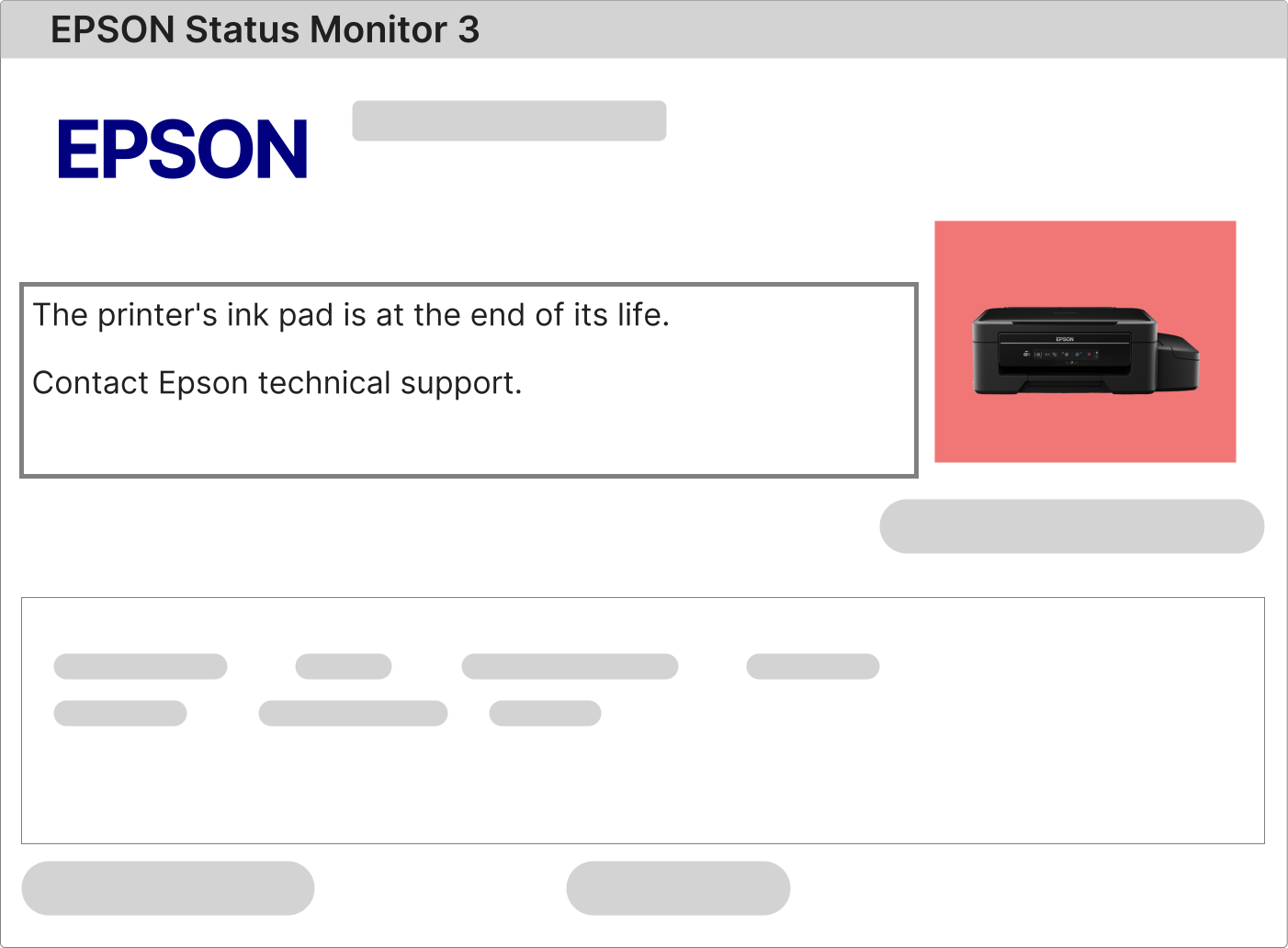
How to Troubleshoot Flashing Indicator Lights on the Epson SureColor SC-P607
Synchronized flashing of the power and error lights on your Epson SureColor SC-P607 indicates a system lockout condition. This state is typically activated when the printer's internal microprocessor determines that the waste ink counter has exceeded its programmed safety threshold. To identify the exact error code and description, examine the printer's LCD display panel or review the alert messages within the Epson Professional Print Status Monitor application on your connected computer.
1 – Ensure the Epson SureColor SC-P607 is powered on and attempt to send a simple print job or initiate a nozzle check from your computer's printer settings.
2 – The printer will likely refuse the command and present a service error notification. If this message contains references to "Ink Absorber," "Maintenance Box," "Waste Ink Counter," or "Service Request," performing an Epson SureColor SC-P607 Printer Reset is the necessary technical solution.
3 – If the printer fails to display any specific error, first verify your driver installation. Download and perform a clean installation of the latest Epson Professional Print driver package for the SC-P607 model, then retest the printer's response to print commands.
Complete Procedure for Resetting the Service Counter on the Epson SureColor SC-P607
Resetting the waste ink counter on the Epson SureColor SC-P607 is a specialized technical process requiring specific adjustment software compatible with this printer model. The setup requires a Windows-based computer, a direct USB connection between the computer and printer, and the printer must be powered on and in a ready state.
This professional model uses a dedicated service application, often referred to as the Epson SC-P607 Service Adjustment Program, which provides authorized access to the protected service menu to reset the waste ink counter parameters.
1 – After completing your purchase, you will receive an email with a secure download link for the licensed reset software specifically designed for the SC-P607.
2 – Install the software on your Windows computer. When you launch the program, enter the unique product activation key provided in your delivery email to unlock the software's full functionality.
3 – Follow the comprehensive video tutorial included with your download. This visual guide demonstrates the exact sequence of operations within the software and the required button presses on the printer's control panel for a successful reset.
4 – After the software confirms the reset process is complete, perform a full hardware power cycle. Turn off the Epson SureColor SC-P607 using its main power switch, wait for 60 seconds to ensure complete system discharge, then power it back on to initialize with the cleared counter.
Understanding the Waste Ink Management System in the Epson SureColor SC-P607
The Epson SureColor SC-P607 features a sophisticated internal waste ink absorption system designed to safely contain residual ink produced during essential printer maintenance operations.
This system channels waste ink from print head cleaning cycles, startup purges, and calibration routines into internal absorbent materials. Technical information about this system is available in the printer's official service documentation.
An electronic counter within the printer's firmware continuously estimates the volume of ink directed to this absorption unit. When the estimated volume reaches a predetermined safety limit, the firmware enforces a complete operational lockout to prevent potential internal damage from ink saturation.
To fully restore your printer's functionality, a two-part solution is required:
• Physical Maintenance: Address the saturated waste ink absorber through professional servicing, which may involve replacing internal absorption materials. For high-volume printing environments, installing an external waste ink drainage system is a recommended long-term solution.
• Software Reset: Perform the Epson SureColor SC-P607 Printer Reset using our licensed, model-specific software. This tool communicates with the printer's service mode to reset the electronic counter to zero, removing the firmware-imposed service lock and allowing normal printing operations to resume.
After payment confirmation, an automated system will send your comprehensive software access email.
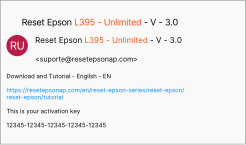
This email contains your permanent software license key, a direct download link for the SC-P607 reset utility, and a detailed, professionally produced video tutorial that provides a visual walkthrough of the entire procedure.
By following the provided instructions carefully, you can execute a safe and effective reset, enabling you to return your Epson SureColor SC-P607 to professional printing service without unnecessary technical support costs.
Epson SureColor SC-P607 Reset: Professional Licensed Solution vs. Unverified Freeware
Why a Licensed Reset is the Responsible Choice for Professional Equipment
Significant Risks of Using Free or Pirated Reset Software on the SC-P607:
• Introduces serious cybersecurity threats including potential data theft and system compromise from embedded malware.
• High probability of causing permanent communication errors between the computer and printer, potentially rendering the device unusable.
• Often results in incomplete resets that only clear temporary flags, leaving the primary service lock intact.
• Carries substantial risk of corrupting the printer's firmware, which can void warranties and permanently disable advanced functions.
Definitive Benefits of the Official Licensed Epson SC-P607 Reset Package:
• 100% secure and verified software, free from viruses, spyware, and malicious code.
• Optimized, user-friendly interface that guides you through the reset process quickly.
• A one-time purchase grants a perpetual, unlimited-use license for your specific Epson SureColor SC-P607 printer.
• Legitimate multi-computer usage rights for your business or studio environment.
• Direct access to specialized technical support from experts familiar with the SC-P607 platform.
• A firmware-safe procedure that adheres to manufacturer protocols, ensuring no adverse effects on print quality or hardware.
How to proceed after purchasing the Reset Epson P607 Printer?
After payment approval, a message like this will be sent to your email.
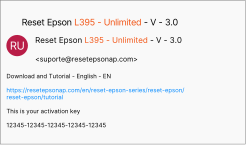
After the payment has been approved, a message like this will be sent to your email, containing your activation key, the correct download link for Reset Epson P607 Printer, and an installation video tutorial that will be on the same page of download..
After receiving this email, open the download link and follow step by step how to install and use Reset Epson P607 Printer
Reset Epson P607 Printer FREE VS Reset Epson P607 Printer Paid