

 PayPal
  PayPro Global
 - You are here:
- Reset Epson P

Professional Maintenance Utility to Reset Epson SureColor SC-P408
Follow this instructional guide to configure the Epson SC-P408 utility correctly. Bypass software restrictions and resume all your printing work.
 Reset Epson P408 Printer Download Unlimited 1/PC
✓ 100% reset of ink pad counter
✓ Installation transfer twice a year
✓ Automatic delivery in 20 Seconds
✓ Permanently Active 1 PC
✓ Installation tutorial
✓ Total Life-Time guarantee
$5 USD
Epson P408 Printer Reset
Permanently active
✓ 100% waste ink counter reset
✓ Multiple printers of this model
✓ Automatic delivery in 20 seconds
✓ Online support
✓ Installation tutorial
✓ Full Life-Time guarantee
$5 USD
Checkout
Total:
$5 USD/1PC
Select one of the payment methods:
Server Status
Automatic delivery in 10 seconds
Manual delivery during business hours
 Keys for multiple models
✓ Choose your Models
✓ All Epson printers available
✓ Packages with 70% discount
✓ Online support
✓ Installation tutorial
✓ Activate it whenever you want
✓ Perfect for assistance
(At the client's company or address)
Shipment
Automatic delivery in 10 seconds every day of the week, 24 hours a day
Warranty
Full product warranty, receive your product or your money back
Windows
Compatible with all Windows - 7 - 8 - 10 - 11
What is the Reset Epson P408 Printer for?
The Epson SureColor SC-P408 Printer Reset is an indispensable service intervention for this professional wide-format printer when it encounters system alerts like "Ink Absorber Life End" or "A Component Has Exceeded Its Service Limit." These warnings are generated by the sophisticated internal monitoring system of the Epson SureColor SC-P408, designed by Epson to proactively prevent internal ink spillage and protect critical print engine components. For verified technical data and official service bulletins, always consult the manufacturer's resource hub at epson.com.
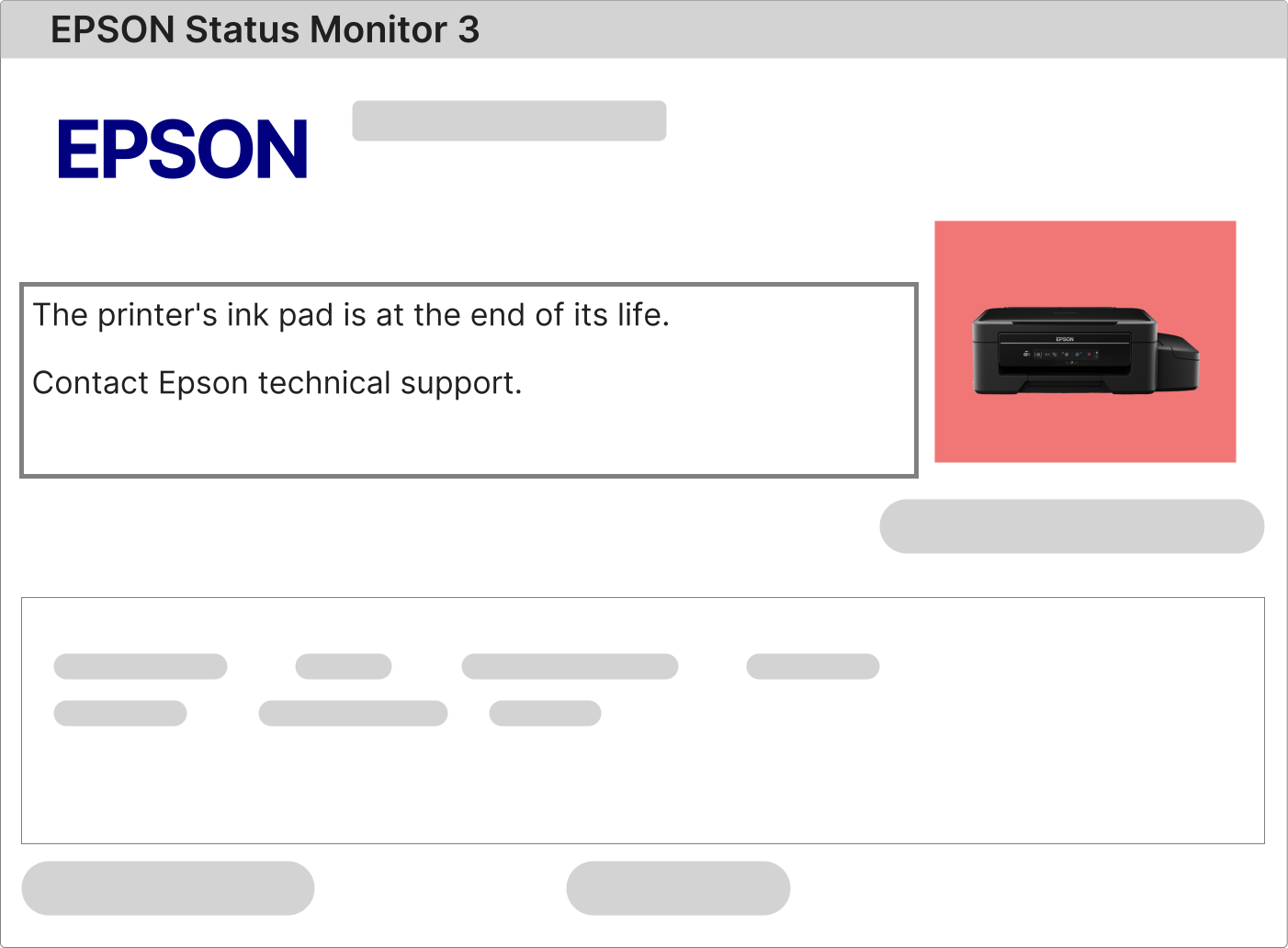
Diagnosing and Resolving the Flashing Indicator Lights Issue on an Epson SureColor SC-P408
A simultaneous flashing of the power and error indicator lights on your Epson SureColor SC-P408 is a clear diagnostic indicator of a firmware-enforced service lockout. This state is almost invariably activated when the printer's internal logic determines that the waste ink counter has surpassed its maximum allowable value as defined in the factory settings. To retrieve the specific error information, access the "Error Log" or "Information" menu on the printer's front control panel or review the error details within the Epson Professional Print Monitor application on your computer.
1 – Power on your Epson SureColor SC-P408 and send a basic print command, such as a test page or nozzle check, from your computer's printing preferences.
2 – The printer will intercept the command and present a service error notification. If this notification cites "Ink Absorber," "Waste Ink Tank," "Maintenance Unit," or "Service Call," then implementing an Epson SureColor SC-P408 Printer Reset is the prescribed technical solution to clear the lock.
3 – If the printer fails to communicate any specific error, first ensure driver integrity. Visit epson.com, find the support page for the SC-P408 model, download the most recent full driver and software suite, perform a clean installation, and then retest the printer's response to a print command.
Complete Procedure for Performing a Waste Ink Counter Reset on the Epson SureColor SC-P408
Conducting a service counter reset on the Epson SureColor SC-P408 is a technical operation that necessitates the use of authorized adjustment software developed specifically for this printer's architecture. Prerequisites include a Windows PC, a direct and reliable USB connection between the computer and printer, and the printer must be powered on and idle (not in the middle of a print job or other operation).
This professional wide-format model relies on a specific service application, accurately termed the Epson SC-P408 Service Adjustment Program, to gain secure access to its service functions and reset the protected waste ink counter parameters.
1 – After your purchase is processed, a digital delivery email will be sent to you containing a private link to download the licensed SC-P408 reset software executable file.
2 – Install the software on your Windows machine. Open the program and, when requested, enter the exclusive product activation code supplied in your delivery email to validate the software license and enable all reset functions.
3 – Utilize the accompanying detailed video tutorial as your primary guide. This tutorial is customized for the SC-P408 and visually walks you through the exact software workflow and the necessary physical button interactions on the printer's interface to initiate and complete the reset sequence safely.
4 – Following the software's confirmation of a successful reset, execute a complete power cycle of the printer. Switch off the Epson SureColor SC-P408 using the main power switch, disconnect it from the electrical outlet for two full minutes to ensure a deep reset, then reconnect and power it back on to reload the firmware with the cleared counter.
The Role of the Waste Ink Absorption System in the Epson SureColor SC-P408
The Epson SureColor SC-P408 is equipped with a high-performance waste ink management system, an integral subsystem responsible for safely collecting and containing residual ink produced during essential printer maintenance and initialization processes.
This system efficiently channels waste ink from print head cleaning, purging, and alignment routines into a dedicated internal absorber or container. The design and maintenance schedule for this component are outlined in technical resources accessible via epson.com.
A firmware-based counter algorithmically tracks ink usage directed to this absorber. Upon reaching its calculated capacity limit, the printer's firmware initiates a protective service lock, halting all printing functions to prevent any risk of internal overflow that could compromise electronic assemblies or mechanical structures.
To comprehensively resolve this service interruption and reinstate full printer operability, a two-part remediation is essential:
• Hardware Attention: Physically address the waste ink saturation. Options include professional servicing to replace the internal absorption materials or installing an Epson-approved external waste ink drainage system. Information on compatible parts and procedures can be sourced from authorized dealers or community forums referenced on epson.com.
• Electronic Reset: Conduct the Epson SureColor SC-P408 Printer Reset using our proprietary licensed software. This application interfaces with the printer's diagnostic port to reset the electronic waste ink counter to its factory default state, effectively removing the software-based service lock and permitting the resumption of normal wide-format printing tasks.
Once your transaction is verified, you will receive an automated email with your product access details.
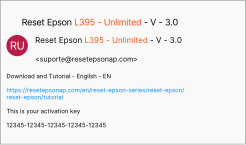
This email serves as your complete digital toolkit. It provides your personal perpetual software license, an immediate download link for the SC-P408-specific reset utility, and an exhaustive, easy-to-follow video tutorial that eliminates guesswork by showing every step of the process in clear visual detail.
Adherence to the guide contained within this toolkit guarantees a smooth, risk-free reset process, empowering you to return your Epson SureColor SC-P408 to productive wide-format printing service efficiently and confidently.
Epson SureColor SC-P408 Reset: The Secure Licensed Approach vs. Hazardous Free Alternatives
Safeguarding Your Professional Printer Investment with Licensed Software
Perils of Employing Unauthorized or "Cracked" Reset Programs on the SC-P408:
• Presents serious cybersecurity risks, potentially introducing ransomware or data-harvesting malware into your studio or office network.
• Can corrupt the printer's communication firmware, resulting in a permanent "dead" state that may necessitate a full system board replacement at significant cost, as listed on epson.com service pages.
• Frequently executes only a partial reset, failing to clear the master service flag and leading to recurring lockouts after minimal use.
• Risks permanent firmware damage, which can invalidate the printer's warranty, disable key professional features, and block future essential firmware updates from Epson.
Unrivaled Advantages of the Official Licensed Epson SC-P408 Reset Solution:
• Professionally developed and thoroughly tested software, guaranteed to be safe and free from any malicious components.
• Efficient and intuitive software design that completes the reset procedure with minimal operational downtime.
• A single purchase provides a lifetime, unlimited-reset license for your specific Epson SureColor SC-P408 printer.
• Authorized for installation and use on multiple computers within your own commercial or personal operational sphere.
• Direct support通道 to technical specialists with in-depth knowledge of the SC-P408 system, available for consultation or remote troubleshooting if needed.
• A precise, manufacturer-compliant reset process that maintains the integrity of your printer's firmware, preserving all original print quality settings and hardware calibration.
How to proceed after purchasing the Reset Epson P408 Printer?
After payment approval, a message like this will be sent to your email.
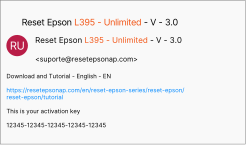
After the payment has been approved, a message like this will be sent to your email, containing your activation key, the correct download link for Reset Epson P408 Printer, and an installation video tutorial that will be on the same page of download..
After receiving this email, open the download link and follow step by step how to install and use Reset Epson P408 Printer
Reset Epson P408 Printer FREE VS Reset Epson P408 Printer Paid