Advanced Software Utility to Reset Epson L5138 Ink Pad Life Counter
Use this technical adjustment program to refresh your Epson L5138 unit. This solution allows you to bypass internal alerts and resume printing.
 Permanently active
✓ Reset 100% of the counter
✓ Installation transfer twice a year
✓ Automatic delivery in 20 Seconds
✓ Permanently Active 1 PC
✓ Installation tutorial
✓ Total Life-Time guarantee
$10 USD
Epson L5138 Printer Reset
permanently active
✓ 100% waste ink counter reset
✓ Multiple printers of this model
✓ Automatic delivery in 20 seconds
✓ Online support
✓ Installation tutorial
✓ Unlimited warranty
$10 USD
Checkout
$10 USD/1PC
Select one of the payment methods:
 PayPal
 PayPro Global
Server Status
Automatic delivery in 10 seconds
Manual delivery during business hours
 Active for 30 days
✓ Reset 100% of the counter
✓ Several printers of this model
✓ Automatic delivery in 20 Seconds
✓ Permanently Active 1 PC
✓ Installation tutorial
✓ 30-day warranty
$2.5 USD
Epson L5138 Printer Reset
Active for 30 days
✓ 100% waste ink counter reset
✓ Multiple printers of this model
✓ Automatic delivery in 20 seconds
✓ Online support
✓ Installation tutorial
✓ 30 day warranty
$2.5 USD
Checkout
$2.5 USD/1PC
Select one of the payment methods:
Server Status
Automatic delivery in 10 seconds
Manual delivery during business hours
 Keys for multiple models
✓ Choose your Models
✓ All Epson printers available
✓ Packages with 70% discount
✓ Online support
✓ Installation tutorial
✓ Activate it whenever you want
✓ Perfect for assistance
(At the client's company or address)
Shipment
Automatic delivery in 10 seconds every day of the week, 24 hours a day
Warranty
Full product warranty, receive your product or your money back
Windows
Compatible with all Windows - 7 - 8 - 10 - 11
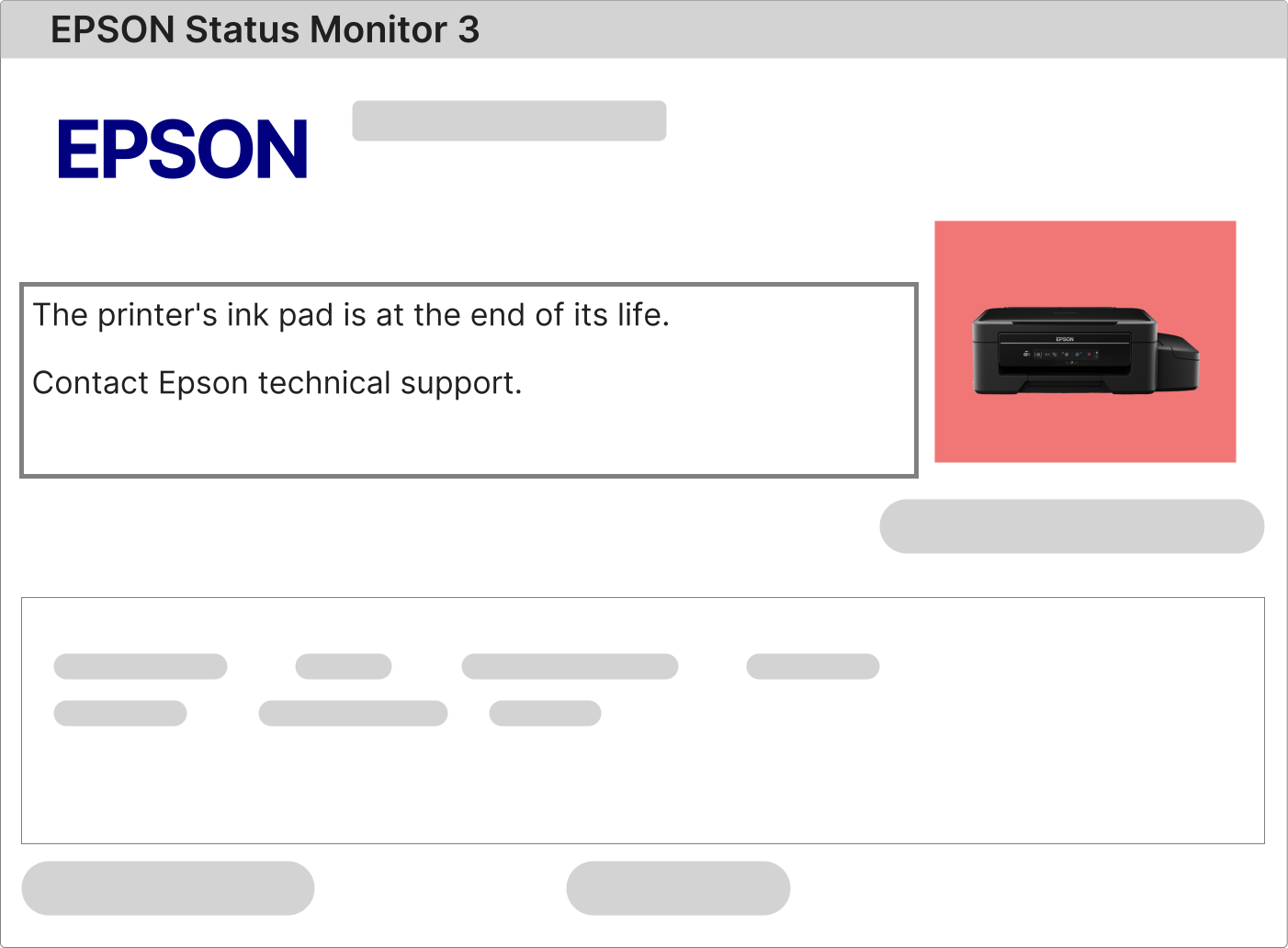
The Epson EcoTank L5138 Printer Reset is a critical procedure when your device displays service warnings such as "A printer's ink pad is at the end of its service life." These messages are part of Epson's built-in protective mechanism designed to maintain the internal integrity and prevent potential ink overflow in your Epson EcoTank L5138.
Understanding the Blinking Lights Alert on Your Epson EcoTank L5138
When all the indicator lights on your Epson EcoTank L5138 blink simultaneously, this is a clear signal of a system lock, typically triggered by the internal waste ink counter reaching its predefined limit. To obtain the exact error code and description, it is essential to check the notification area within the Epson Status Monitor 3 software on your connected computer.
1 – Send any standard print job to your Epson EcoTank L5138. The print interruption will cause a detailed error message to appear in the Epson Status Monitor 3 window.
2 – If the alert specifically mentions the ink pad, waste ink counter, or end of service life, you will need to perform a full Epson L5138 Reset procedure.
3 – Should no error message appear, verify that you have the latest official Epson EcoTank L5138 drivers installed from Epson.com, and repeat the print test for accurate diagnosis.
Complete Guide to Resetting the Waste Ink Counter on the Epson EcoTank L5138
The reset process for the Epson EcoTank L5138 is systematic and reliable. The core requirements are a Windows-based PC, an active internet connection, and the printer must be powered ON and connected via a USB cable for stable data transfer.
To reset the internal maintenance counter, the Epson EcoTank L5138 requires a specific service utility, often called the Epson L5138 Adjustment Program or Waste Ink Reset Software.
1 – Securely download the official reset software package using the unique link sent to your email after purchase.
2 – Install and activate the software using the individual license key included in your purchase confirmation email.
3 – Follow the comprehensive step-by-step video tutorial provided with your download to execute the reset accurately.
4 – Upon successful completion, perform a power cycle on your Epson EcoTank L5138 (turn it off and on) to finalize the reset and clear the error state.
Role and Maintenance of the Waste Ink Absorber in Your Epson EcoTank L5138
Your Epson EcoTank L5138 is fitted with an internal waste ink management system, consisting of special absorbent pads located inside the printer unit.
• During initialization and automatic print head cleaning cycles, excess ink is channeled into these absorber pads.
• Regular maintenance operations that occur as part of the printing process continue to add small amounts of residual ink to this system over time.
• As the absorber pads near their saturation capacity, the Epson EcoTank L5138 will automatically halt all printing functions to prevent internal damage and potential leaks.
• To resolve this issue and restore full functionality, two consecutive actions are required:
• Service the physical waste ink system: clean or replace the pads, or install an external waste ink tank.
• Execute the Epson EcoTank L5138 Software Reset to reset the internal electronic counter to zero.
After your payment is approved, you will receive an email containing all necessary components, similar to the example illustrated below.